
.csv and .tsv files directly as documents. No scratch database, no import step. The file is the source of truth; Save writes back to it.
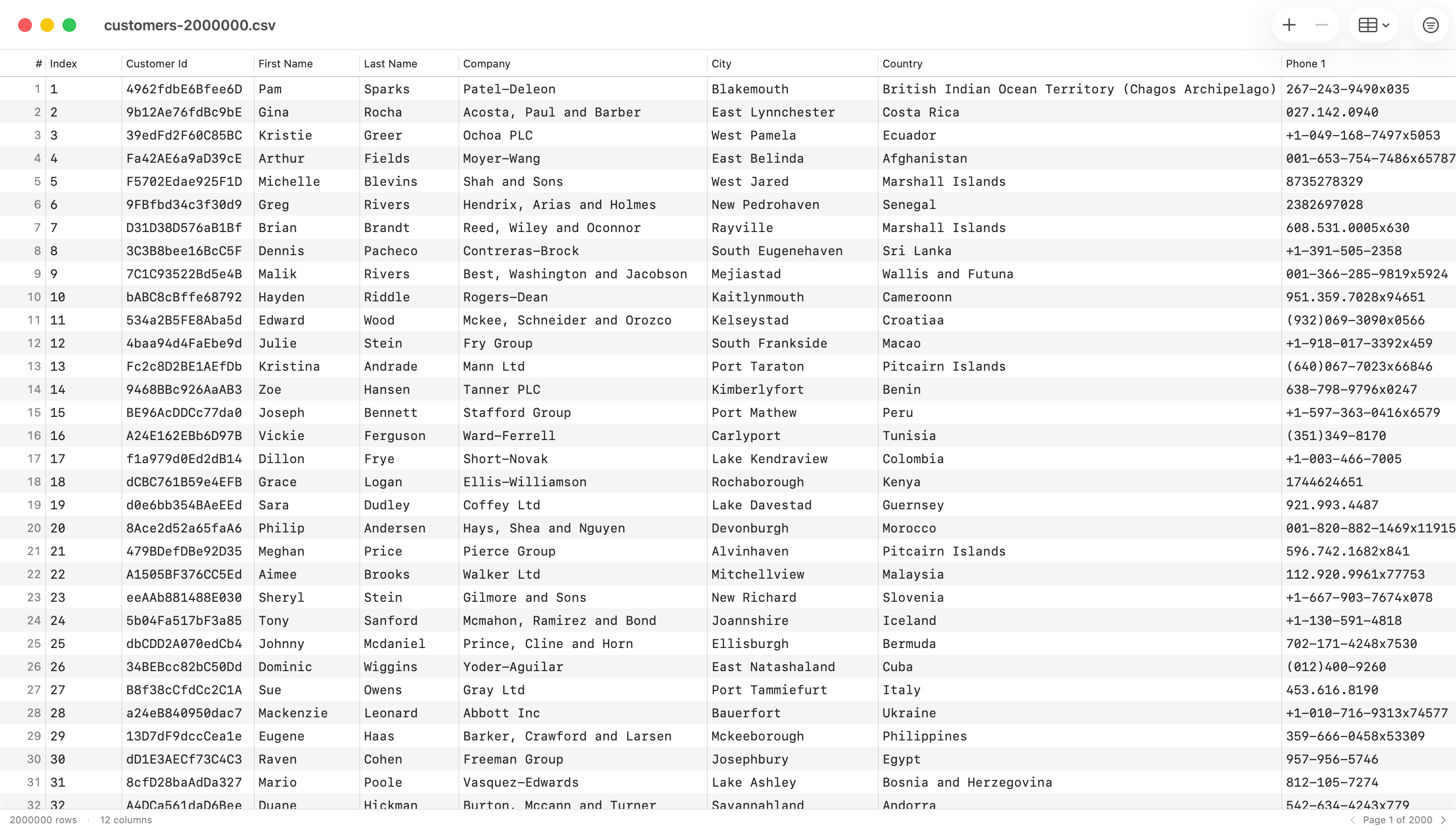
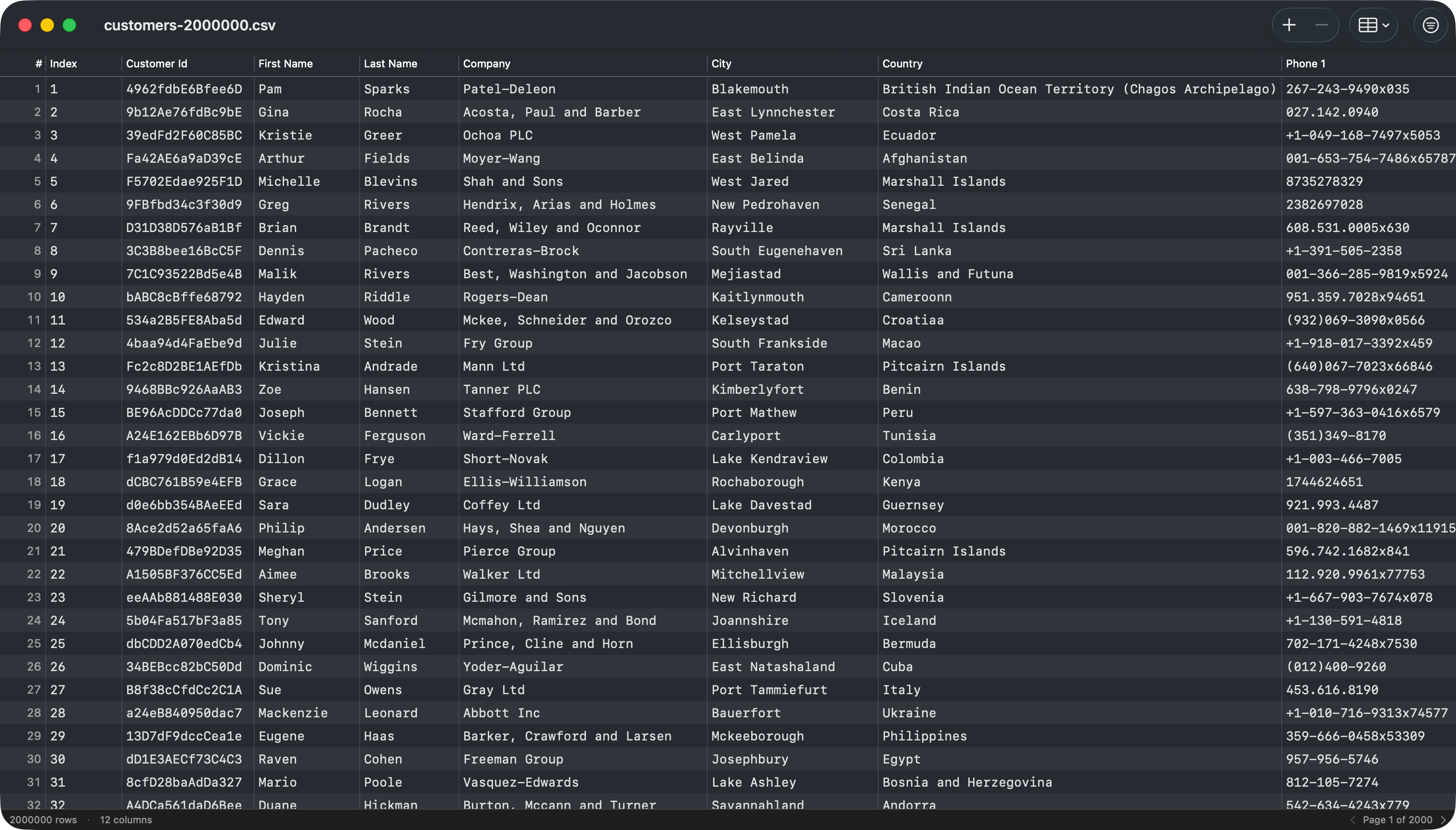
CSV inspector window with toolbar, header row, and paginated data
Opening a file
- Double-click a
.csvor.tsvin Finder, or right-click and choose Open With > TablePro. - Drag a file onto the TablePro Dock icon.
Auto-detection
When a file opens, TablePro detects:- Delimiter: comma, tab, semicolon, or pipe, whichever appears most often outside quoted regions in the first 64 KB.
.tsvfiles always use tab. - Encoding: a BOM selects UTF-8, UTF-16 BE, or UTF-16 LE. Without a BOM, TablePro probes up to the first 256 KB: valid UTF-8 reads as UTF-8, anything else reads the whole file as Windows-1252.
- Line ending: CRLF, LF, or CR, whichever appears first in the first 64 KB.
- Header row: row one is treated as headers when at least half of its cells are non-empty and not numbers. Otherwise TablePro generates
Column 1,Column 2, … and treats every row as data.
Pagination
Rows load in pages. The page size comes from the Default page size setting in Settings > Data Grid, 1,000 rows by default. The status bar shows row and column counts, and previous/next page controls when the file spans more than one page.Editing
- Double-click a cell (or press Return on it) to edit. Return commits and closes the editor. Tab commits and moves to the next cell, wrapping to the next row.
- The toolbar
Add Rowbutton appends a new row, scrolls to it, and selects it. - Right-click a row and choose Insert Row Above or Insert Row Below to add a blank row next to it. Both also appear in the Edit menu, where they insert next to the selected row, or at the top or bottom when nothing is selected.
- Select rows and press
Delete(the toolbarDeletebutton, or right-click a row and choose Delete) to remove them. The next row takes selection so arrow keys keep working from where you were. - Deleting rows that hold data asks you to confirm first. Deleting blank rows skips the prompt.
- Cmd+Z and Cmd+Shift+Z undo and redo every change. Each insert, a bulk delete, or a paste is a single undo step.
Column operations
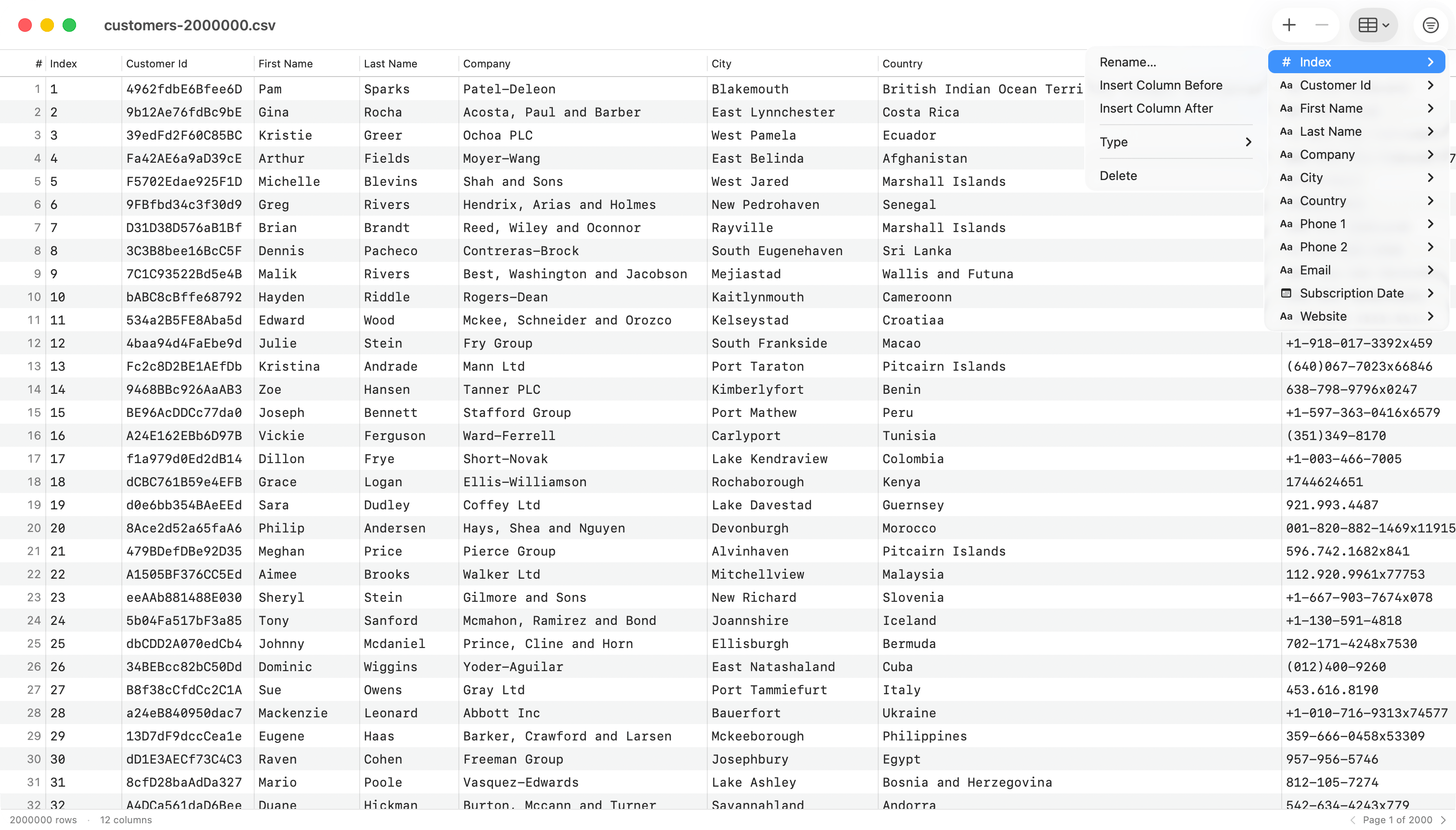
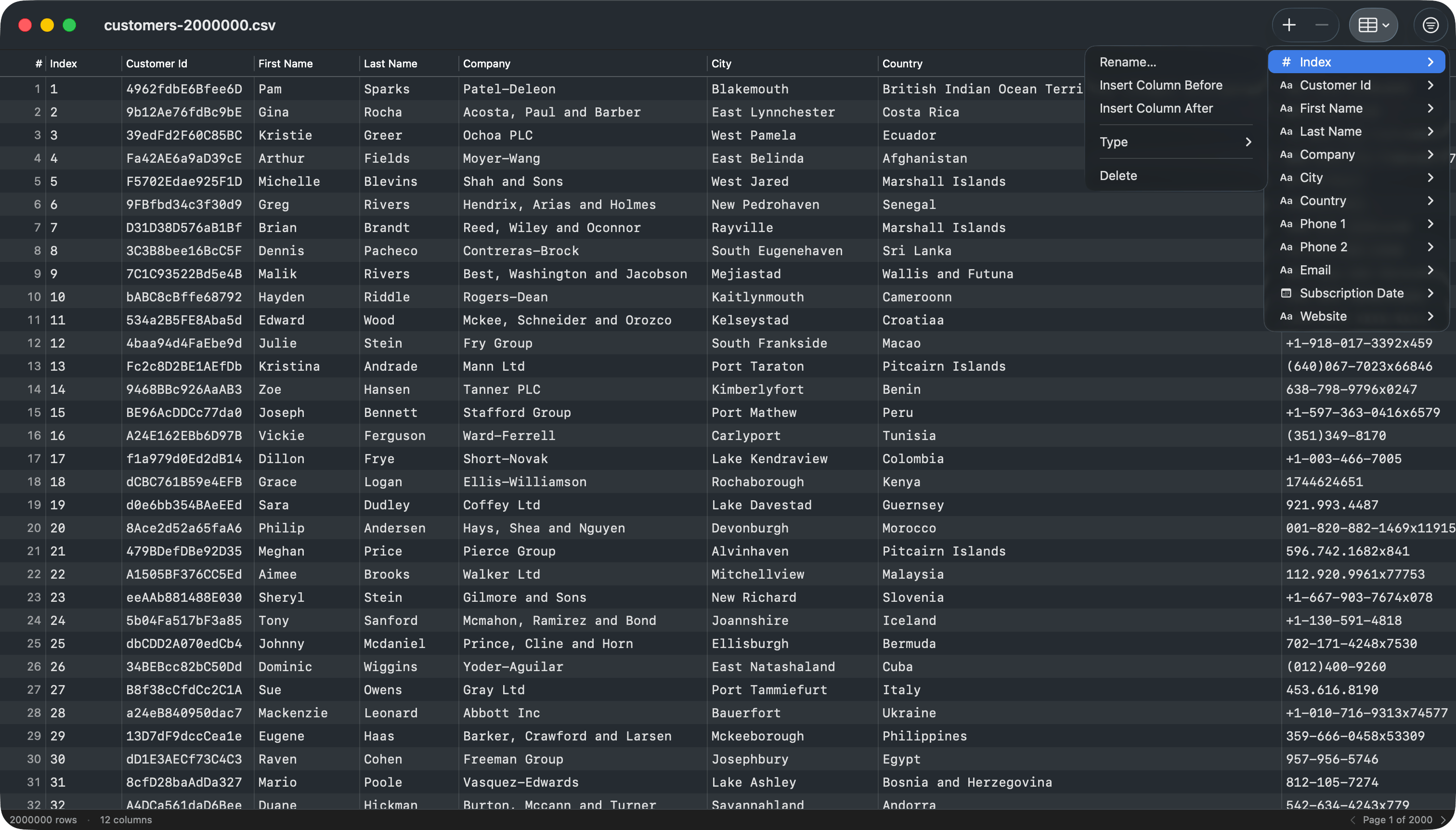
Columns toolbar menu with per-column submenu for rename, insert, type override, and delete
Columns menu, to reach the same per-column actions:
- Rename Column… prompts for a new name; the column stays in place.
- Insert Column Left / Right inserts a new column next to the one you clicked, with a name you supply.
- Split Column… splits each value into new columns at every match of a delimiter or a regular expression. The original column is replaced by the pieces; rows with fewer pieces get empty cells.
- Merge Columns… joins the column with the one to its right into a single column, placing a separator you choose between the two values.
- Change Type ▸ overrides the inferred type as Text, Integer, Real, Boolean, or Date. Reset to Inferred drops the override.
- Delete Column removes the column. It sits last in the menu and is undoable with Cmd+Z. Deleting a column that holds data asks you to confirm first.
Columns menu, Add Column… at the top appends a new column at the end, and every column is listed below it with its current type and the same submenu.
Header row
TablePro guesses whether the first row is a header when it opens the file. When it guesses wrong, choose Edit > Switch First Row Between Header/Data (Cmd+Shift+H) to flip it. Turning the header off moves the first row down into the data and names the columns Column 1, Column 2, and so on. Turning it back on promotes the first data row to the header. The change is undoable, and Save writes the file with or without a header row to match.
Filter and sort
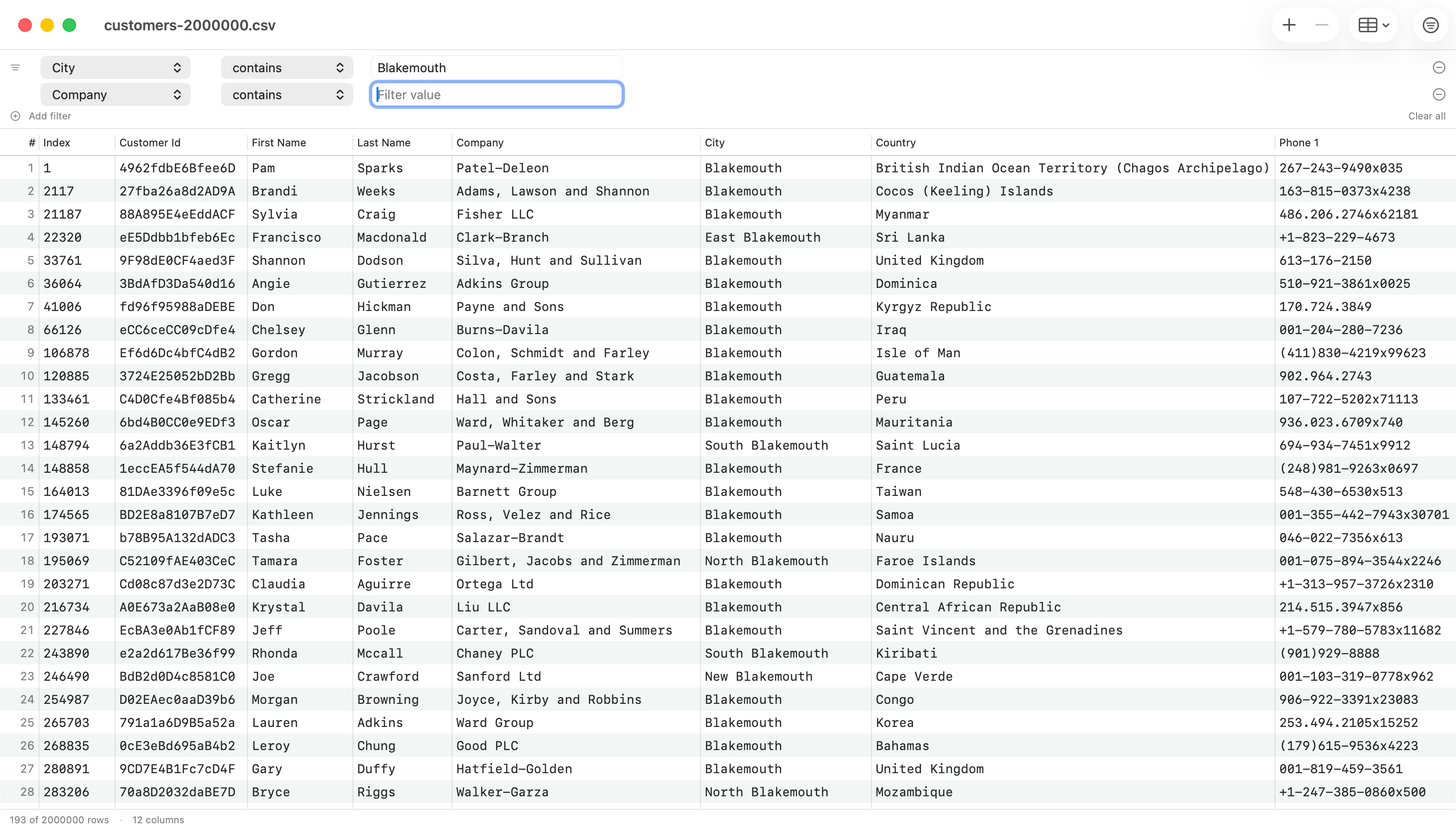
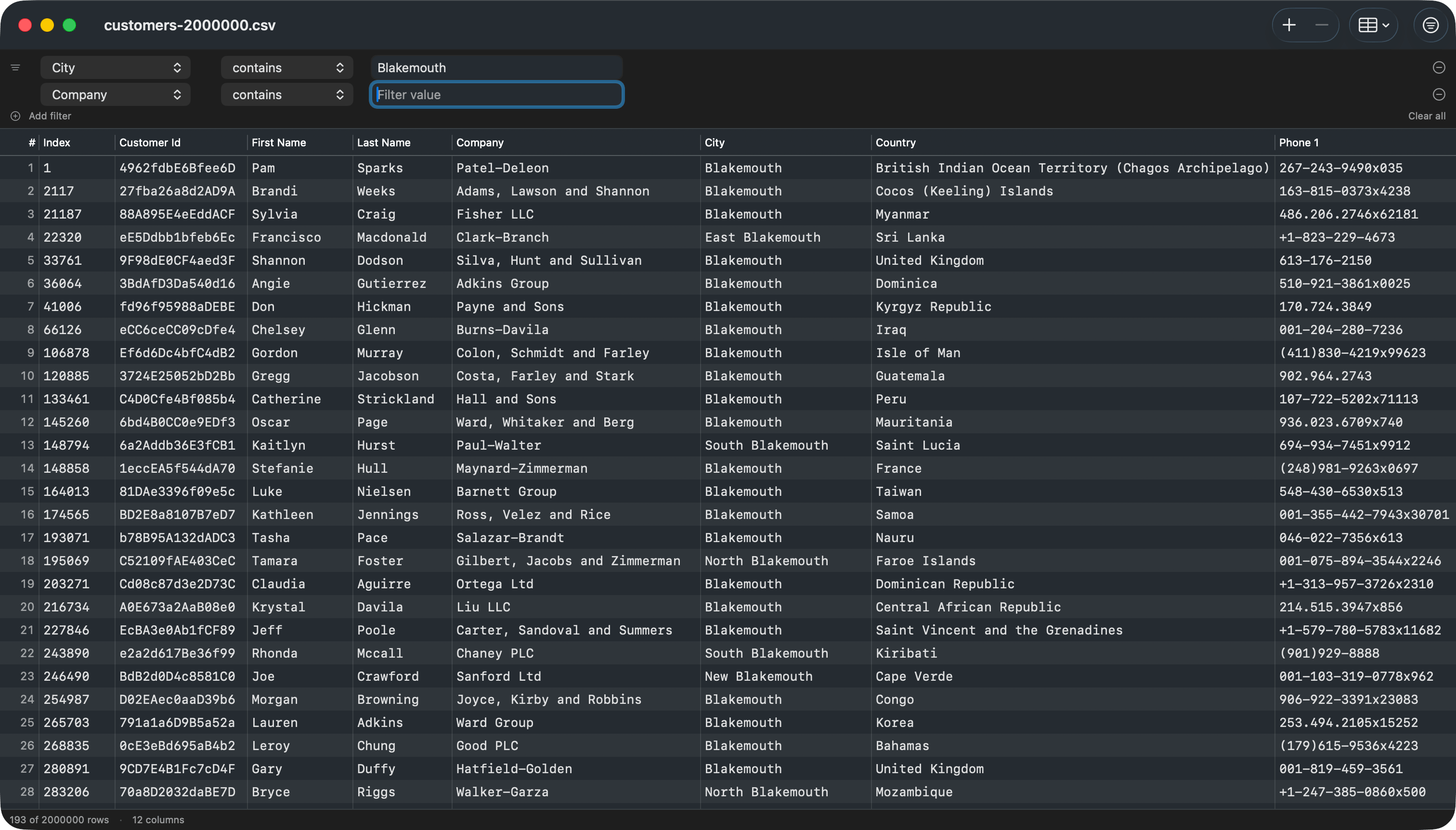
Filter bar with multiple conditions (AND) above the data grid
Cmd+Ftoggles the filter bar. Each row is one condition: column, operator (contains,equals,does not equal,starts with,ends with,is empty,is not empty), and value.- Use
+ Add filterfor additional conditions. All conditions are combined with AND. Clear allresets to a single empty condition.- Click a column header to sort by that column. Shift-click another column to add it as a secondary sort key (and so on for tie-breakers).
- Numeric-typed columns sort numerically; text columns sort with natural ordering (so
Item 2comes beforeItem 10). - Filter and sort run off the main thread, so the UI stays responsive on large files. An “Updating…” indicator shows in the status bar while a recompute is in flight.
Copy and paste
Cmd+Ccopies the focused cell’s value, or whole selected rows as TSV (tab-separated values).Cmd+Vparses TSV from the pasteboard and appends each line as a new row. A block narrower than the table pastes into cells at the focused cell instead. A whole paste is one undo step.
Type inference
TablePro samples the first 200 rows of the file and infersInteger, Real, Boolean, Date, or Text per column, skipping empty values. The inferred type controls numeric sorting. Inferred types do not modify the stored data: every cell is still a string on disk. Override per-column from the Columns menu.
Saving
- Cmd+S saves to the original path, preserving the detected delimiter, encoding, line ending, and BOM. Unedited rows are written back byte-for-byte.
- Cmd+Shift+S brings up Save As, where you can re-pick the destination.
- The window close button shows the standard unsaved-changes dot until you save.
External changes
If another application writes the file while you have it open in TablePro:- If you have no unsaved edits, TablePro reloads the file.
- If you have unsaved edits, TablePro asks whether to reload or keep your changes.