
Connection URL Reference
TablePro parses standard database connection URLs for importing connections, opening them directly from a browser or terminal, and configuring SSH tunnels.URL Schemes
Append
+ssh to any scheme (except SQLite) to use an SSH tunnel:
Standard Format
SSH Tunnel Format
SSH tunnel URLs encode both SSH and database credentials in a single string:db_host is omitted, it defaults to 127.0.0.1.
Query Parameters
Connection
SSL / TLS
Example:
Navigation
These parameters open a specific table, view, or schema immediately after connecting.
On databases that support schema switching (PostgreSQL, Redshift, SQL Server, Oracle),
schema switches the schema. On databases that don’t, the value is treated as a database name and switches the database instead.
Example:
Filtering
Apply a filter to the opened table automatically.operator is accepted as an alias for operation. raw and query are accepted as aliases for condition.
Example:
Appearance
Example:
MongoDB
Any other query parameter on a MongoDB URL passes through to the driver unchanged. Multi-host URIs with comma-separated hosts are supported.
Example:
Redis
The path component sets the database index (0-15). Therediss:// scheme automatically enables TLS.
Cassandra / ScyllaDB
The path component sets the default keyspace. Bothcassandra:// and scylladb:// schemes use the same format.
DuckDB
DuckDB uses file-based connections. The path after:// is the file path, same as SQLite.
ClickHouse
ClickHouse uses HTTP on port 8123 by default.ch:// is accepted as an alias.
etcd
Theetcds:// scheme automatically enables TLS. Default port is 2379.
libSQL / Turso
The URL host maps to the database URL. The auth token goes in the password field of the connection form.Cloudflare D1
The host maps to the Cloudflare Account ID. The path sets the database name or UUID.SSH Tunnel
Example:
Opening URLs from Browser or Terminal
Launch and connect from a browser or terminal: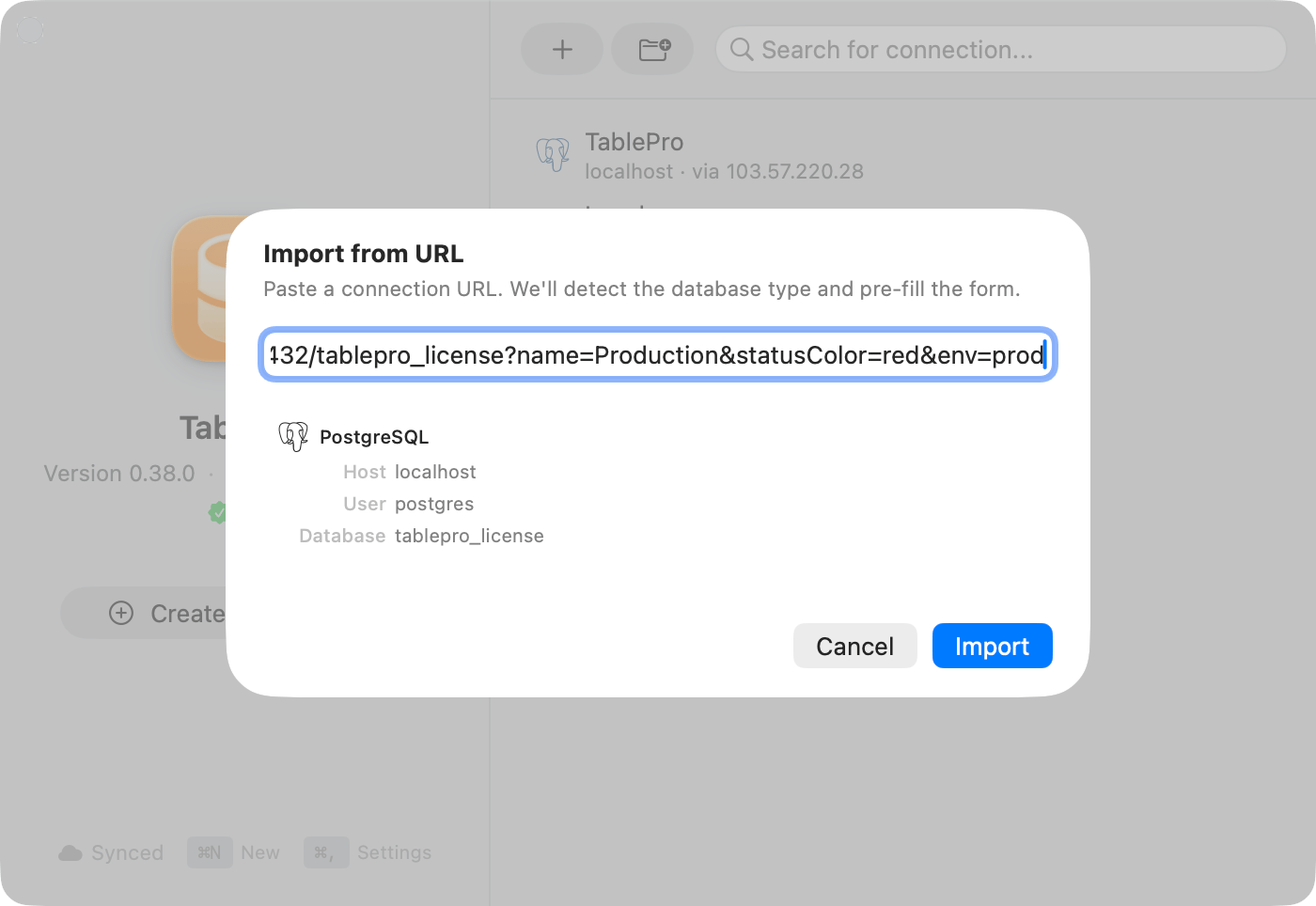
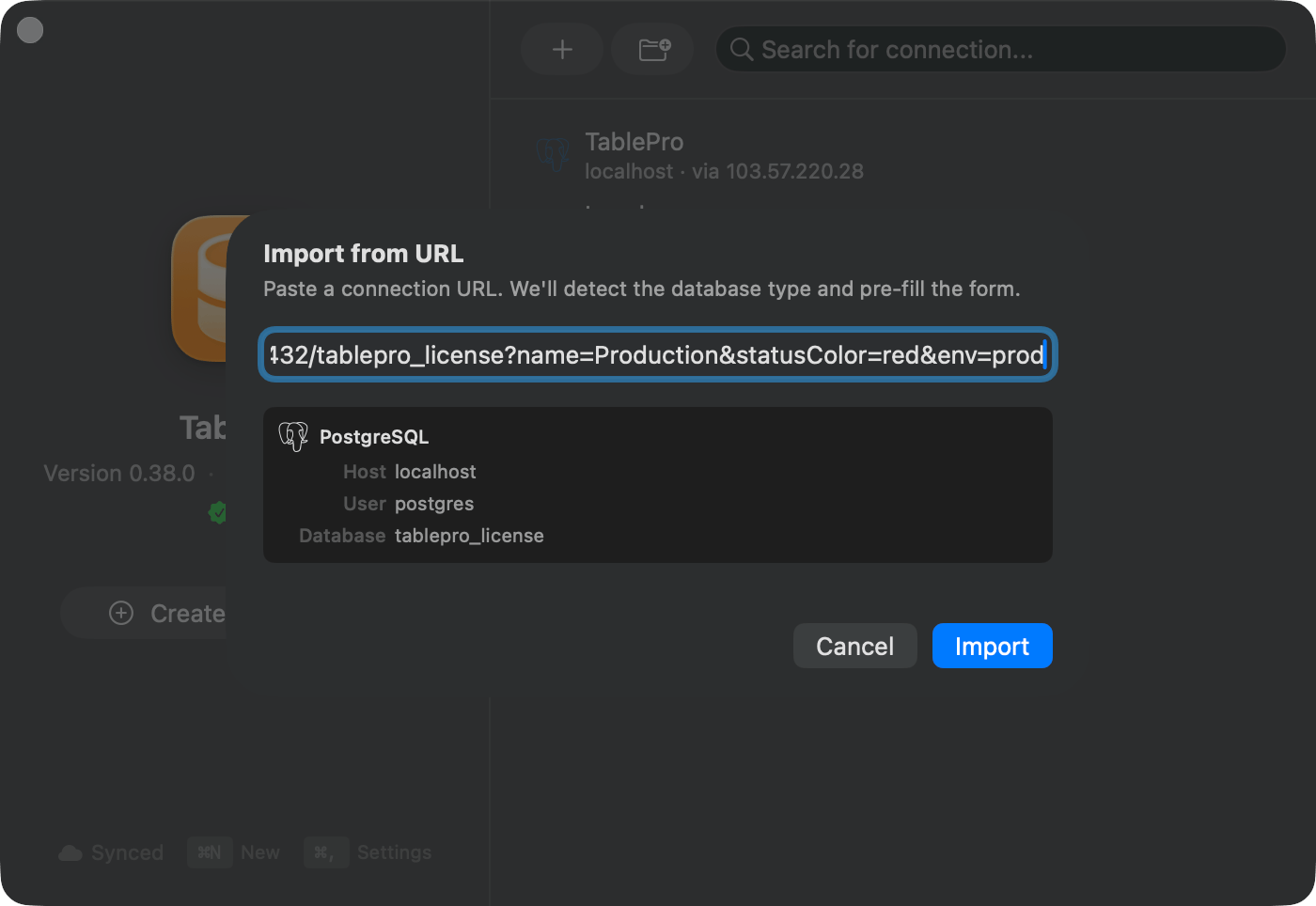
The Import from URL sheet accepts every scheme in this reference
+ssh schemes are not registered with macOS, so open and browser links cannot route them to TablePro. Use the Import from URL… sheet for SSH tunnel URLs.
Confirmation and Trusted Links
Every URL opened from outside the app shows a confirmation alert with the database type, host, user, and database before TablePro connects. Connect only if you trust the source of the link. For connections to this machine (localhost, 127.x.x.x, ::1) the alert also offers Always Allow. A trusted link is matched by database type, host, database, username, and the URL’s name parameter, never the port. Only loopback hosts can be trusted; remote hosts always prompt.
Review trusted links under Settings > General > Trusted Links, where you can forget them one at a time or all at once.