
Settings
Open withCmd+,. Settings are grouped into nine tabs.
General
Language, startup, tabs, sidebar, query timeout, updates, reset.
Appearance
Appearance mode, themes, per-theme fonts and colors.
Editor
SQL editor, Vim mode, line numbers, query parameters.
Data
Data grid, pagination, result cap, JSON viewer, query history, saved customizations.
Keyboard
Custom shortcuts.
AI
Providers, inline suggestions, context, slash commands.
Integrations
MCP server, tokens, remote access, activity.
Plugins
Manage drivers, exporters, and themes.
Account
License, iCloud sync, linked folders.
The General tab
General
Language
System (default), English, Tiếng Việt, 简体中文, 繁體中文, Türkçe. Changing the language requires restarting TablePro.Startup Behavior
Reopened tabs restore their SQL, cursor position, sort, filters, page, and column widths. Connections reconnect lazily on first interaction, so an unreachable database does not block launch. See Tabs.
Tabs
Sidebar
Query Execution
Query timeout sets the maximum seconds a query runs before cancellation. Default 60; choices from 10 to 600 seconds, plus No limit. Applies to new connections, so a change requires a reconnect. Enforcement happens at the database level where supported:
No limit raises the HTTP transport ceiling to 1 hour.
Command Line
Install writes atablepro command to /usr/local/bin that opens database URLs in TablePro. If TablePro cannot write there, it shows a command for you to run in Terminal. See Terminal and DDEV.
Trusted Links
Lists external links you chose to always allow, with Forget per entry and Forget All. Only databases on this machine can be trusted; remote links ask for confirmation every time.Software Update
Powered by Sparkle. Also available from the TablePro menu.
Privacy
Reset
Reset All Settings to Defaults resets every settings tab after a confirmation. Saved connections and query history are not affected.AI
Enable AI Features is the master switch; turning it off hides the other AI sections and disables chat, inline suggestions, and editor actions. Active Provider picks the default provider; the chat composer’s model picker can override it per turn. Add Provider… offers GitHub Copilot, ChatGPT, Cursor, Claude, OpenAI, OpenRouter, OpenCode Zen, Gemini, xAI, Ollama, and a custom OpenAI-compatible endpoint. Click a provider row to open its detail sheet:- Test Connection verifies the key, sign-in, or endpoint.
- Model lists curated models plus models fetched from the provider; pick Other… to type a custom model ID.
- Reasoning sets the effort level on models that support it, or Off.
Inline Suggestions
Context
The Privacy section sets the default Connection policy (Ask Each Time) applied to new connections. For custom slash commands, chat modes, and per-connection AI rules, see AI Assistant.
Integrations
The Integrations tab runs the MCP server. Enable MCP Server (default off) starts it and shows a live status. See MCP Server for a walkthrough and the External API reference for the tool catalog.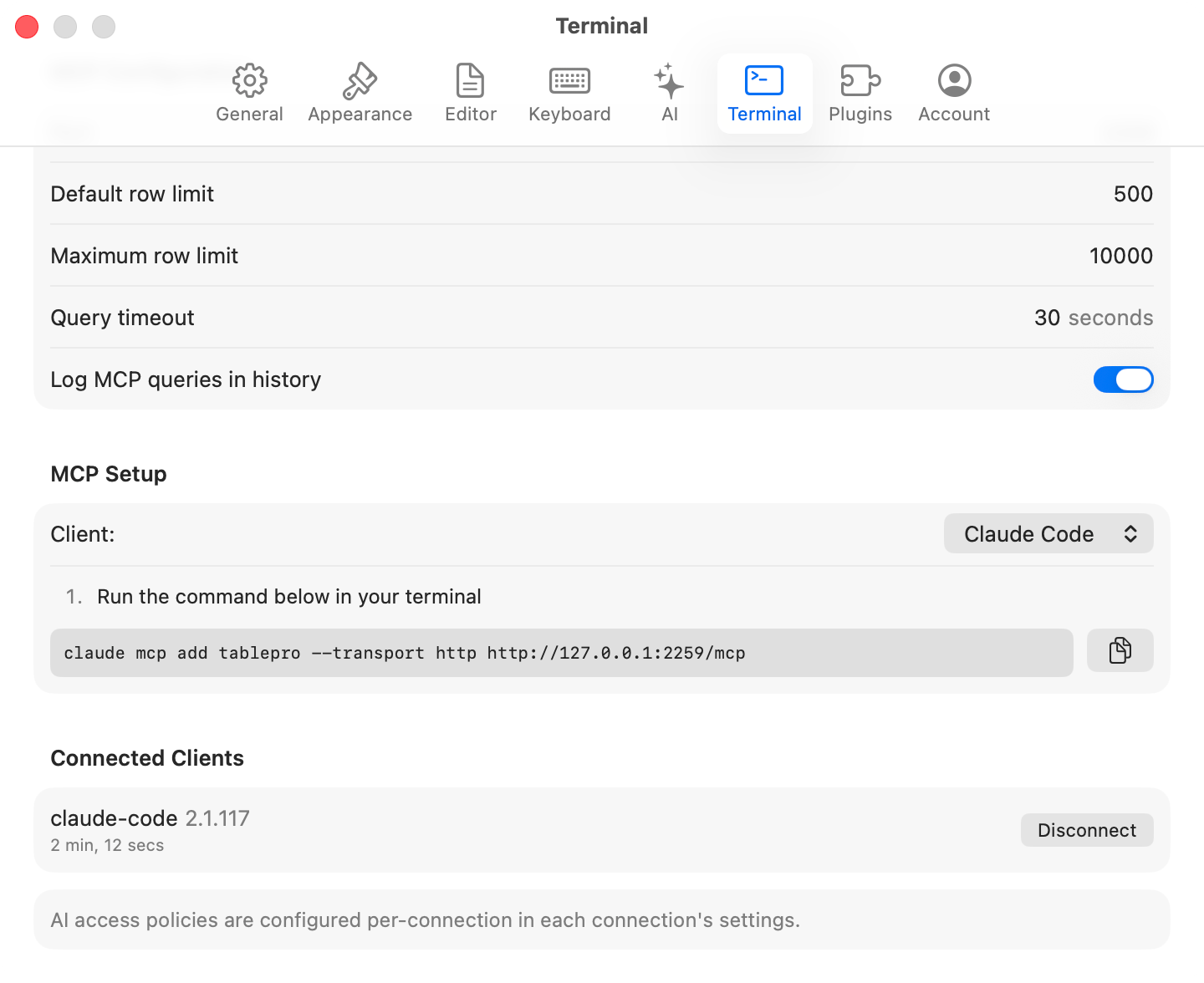
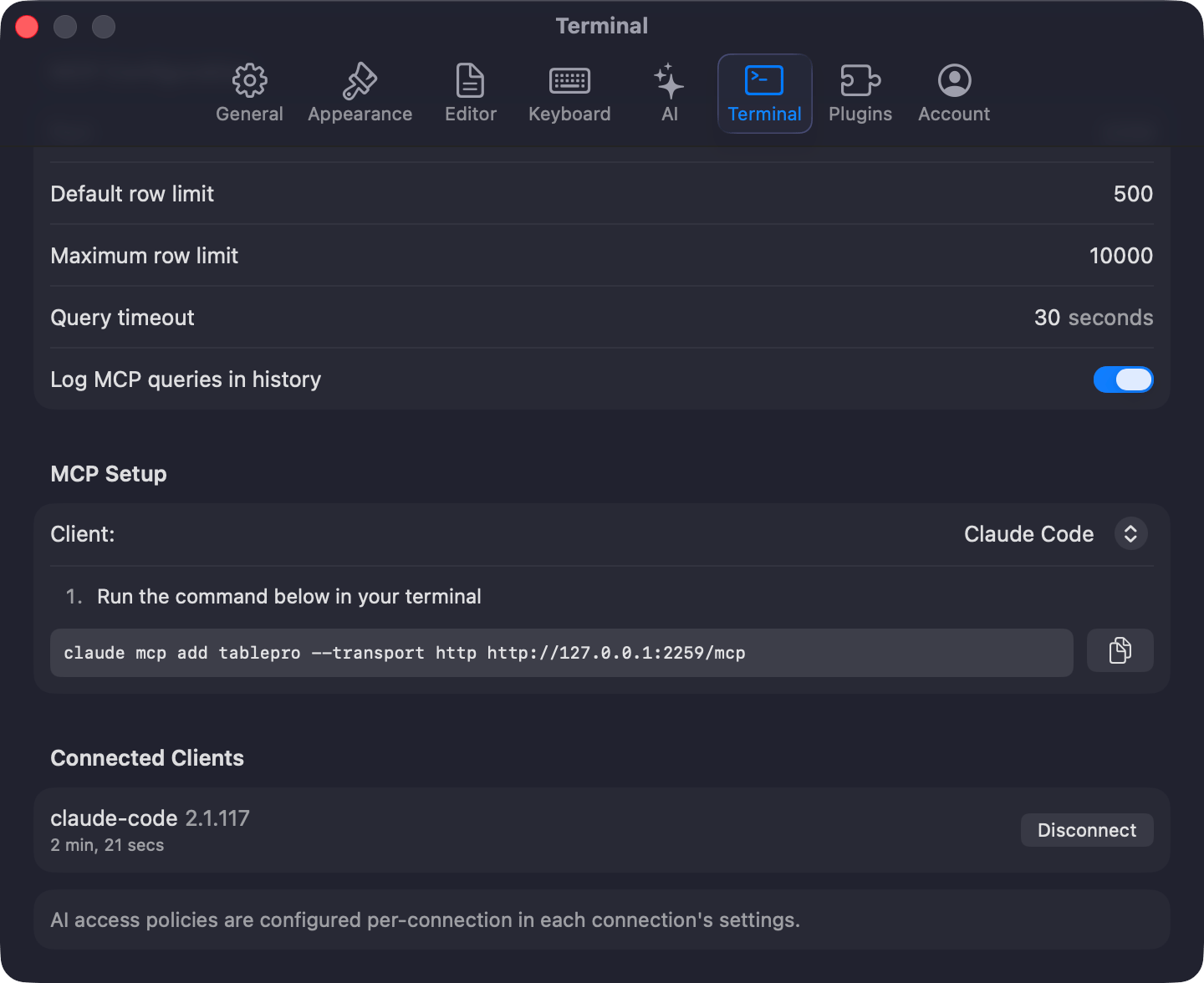
Integrations tab with the MCP server enabled
Server Configuration
Authentication
Require authentication defaults to on. Turning it on with no tokens generates a full-access token named “Default token” and reveals it once; copy it then. Generate, revoke, and delete tokens in the list below the toggle. See Tokens.Network
Allow remote connections defaults to off. Enabling it makes the server reachable from other devices and turns on authentication and TLS automatically.Clients and activity
Connect a Client… shows setup steps and config snippets for Claude Code, Claude Desktop, Cursor, and Zed. View Activity… opens the Integrations Activity window with authentication events, tool calls, and connected clients.Plugins
Split view: plugin list on the left, details on the right.- Installed: bundled plugins (MySQL, PostgreSQL, SQLite, ClickHouse, and Redis drivers; CSV, JSON, SQL, XLSX, and MQL exporters; SQL, JSON, and CSV importers; CSV Inspector) plus anything you installed. Toggle a plugin on or off in the detail pane. Bundled plugins can be disabled but not uninstalled.
- Browse: install from the registry, with search and a category filter (Database Drivers, Export Formats, Import Formats, Themes, Other). Registry drivers: MongoDB, Oracle, DuckDB, SQL Server, Cassandra, Etcd, Cloudflare D1, DynamoDB, BigQuery, Snowflake, Elasticsearch, LibSQL, SurrealDB, and Beancount.
- Sideload: click + or drag a
.tableplugin/.ziponto the view. TablePro verifies the code signature.
Account
Activate, deactivate, or view your license here. TablePro checks the license signature locally, re-validates with the server every 7 days, and allows 30 days offline before validation fails. On a Team plan, paste an invite code in the activation field to join a team instead of entering a key. See Team plan and Licensing. iCloud sync and linked folders live on the same tab. See iCloud Sync.Settings Storage
Settings live in~/Library/Preferences/com.TablePro.plist. Use Reset All Settings to Defaults on the General tab to reset them.
Advanced flags not exposed in the UI: