> ## Documentation Index
> Fetch the complete documentation index at: https://ngquct-feat-ai-sql-walkthroughs.mintlify.site/llms.txt
> Use this file to discover all available pages before exploring further.
# CSV Inspector
> Open, view, and edit CSV and TSV files without importing them into a database.
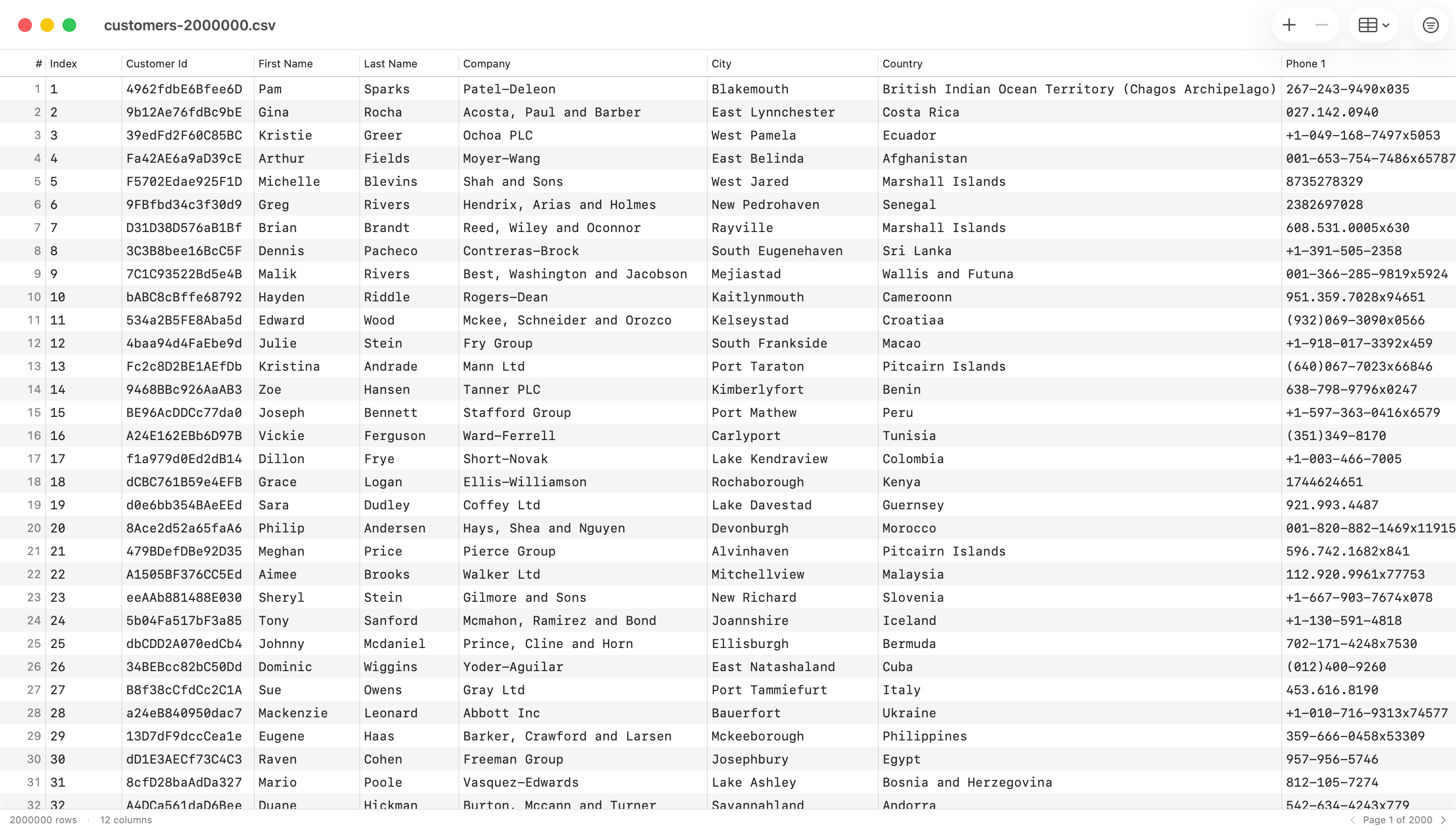
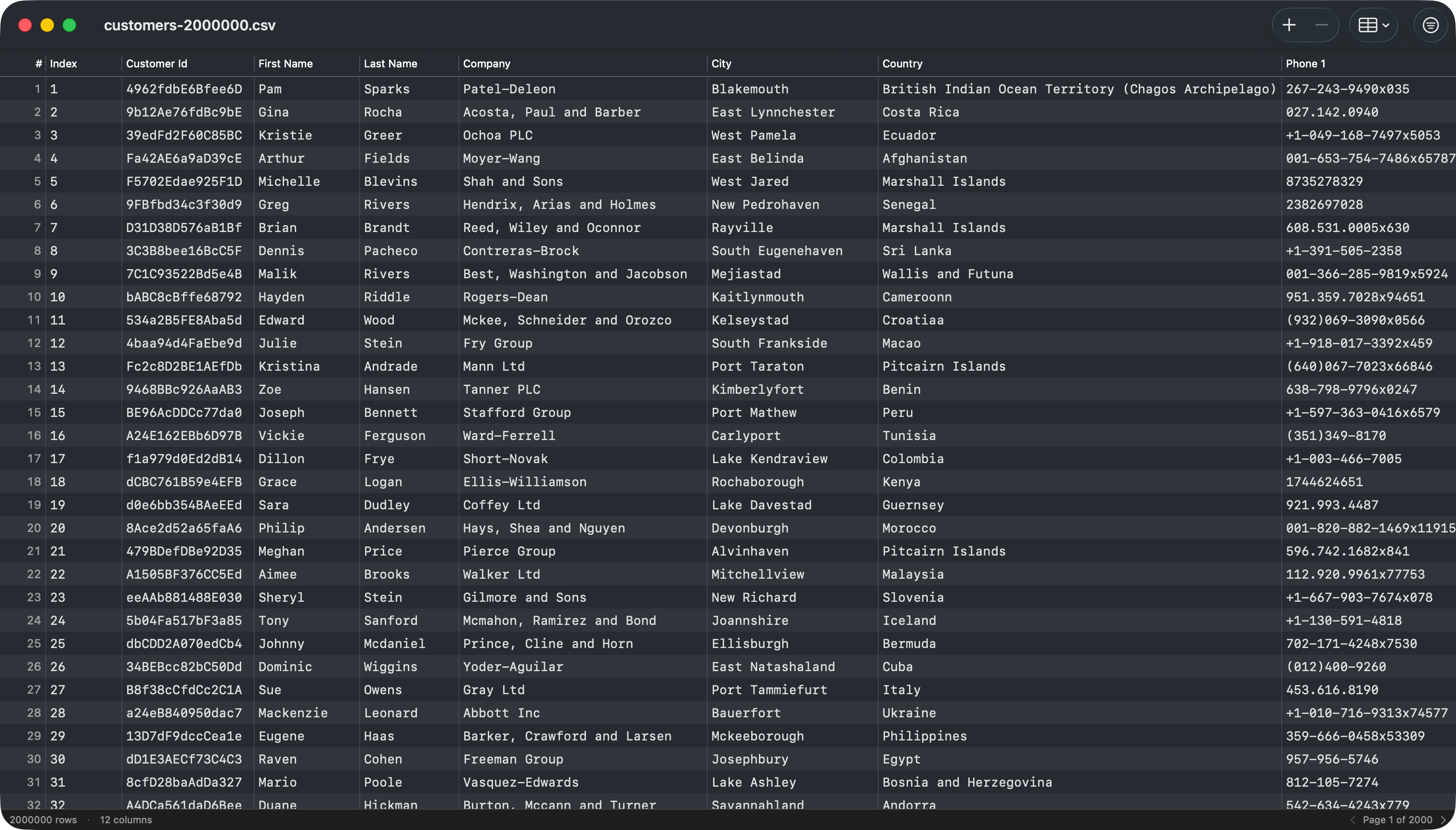
TablePro opens `.csv` and `.tsv` files directly as documents. No scratch database, no import step. The file is the source of truth; Save writes back to it.
 ## Opening a file
* Double-click a `.csv` or `.tsv` in Finder, or right-click and choose Open With > TablePro.
* Drag a file onto the TablePro Dock icon.
File > Open File... opens SQL files only, so it is not a path into the inspector.
## Auto-detection
When a file opens, TablePro detects:
* **Delimiter**: comma, tab, semicolon, or pipe, whichever appears most often outside quoted regions in the first 64 KB. `.tsv` files always use tab.
* **Encoding**: a BOM selects UTF-8, UTF-16 BE, or UTF-16 LE. Without a BOM, TablePro probes up to the first 256 KB: valid UTF-8 reads as UTF-8, anything else reads the whole file as Windows-1252.
* **Line ending**: CRLF, LF, or CR, whichever appears first in the first 64 KB.
* **Header row**: row one is treated as headers when at least half of its cells are non-empty and not numbers. Otherwise TablePro generates `Column 1`, `Column 2`, ... and treats every row as data.
When a guess is wrong, choose **Edit > Set CSV Properties…** to pick the delimiter, quote character, escape character, encoding, and line ending by hand, then **Reload** to re-read the file with those settings. The escape character is either a doubled quote (the RFC 4180 default) or a backslash. Reload discards unsaved edits and asks first if you have any.
## Pagination
Rows load in pages. The page size comes from the Default page size setting in [Settings > Data Grid](/customization/settings), 1,000 rows by default. The status bar shows row and column counts, and previous/next page controls when the file spans more than one page.
## Editing
* Double-click a cell (or press Return on it) to edit. Return commits and closes the editor. Tab commits and moves to the next cell, wrapping to the next row.
* The toolbar `Add Row` button appends a new row, scrolls to it, and selects it.
* Right-click a row and choose **Insert Row Above** or **Insert Row Below** to add a blank row next to it. Both also appear in the Edit menu, where they insert next to the selected row, or at the top or bottom when nothing is selected.
* Select rows and press `Delete` (the toolbar `Delete` button, or right-click a row and choose Delete) to remove them. The next row takes selection so arrow keys keep working from where you were.
* Deleting rows that hold data asks you to confirm first. Deleting blank rows skips the prompt.
* Cmd+Z and Cmd+Shift+Z undo and redo every change. Each insert, a bulk delete, or a paste is a single undo step.
## Column operations
## Opening a file
* Double-click a `.csv` or `.tsv` in Finder, or right-click and choose Open With > TablePro.
* Drag a file onto the TablePro Dock icon.
File > Open File... opens SQL files only, so it is not a path into the inspector.
## Auto-detection
When a file opens, TablePro detects:
* **Delimiter**: comma, tab, semicolon, or pipe, whichever appears most often outside quoted regions in the first 64 KB. `.tsv` files always use tab.
* **Encoding**: a BOM selects UTF-8, UTF-16 BE, or UTF-16 LE. Without a BOM, TablePro probes up to the first 256 KB: valid UTF-8 reads as UTF-8, anything else reads the whole file as Windows-1252.
* **Line ending**: CRLF, LF, or CR, whichever appears first in the first 64 KB.
* **Header row**: row one is treated as headers when at least half of its cells are non-empty and not numbers. Otherwise TablePro generates `Column 1`, `Column 2`, ... and treats every row as data.
When a guess is wrong, choose **Edit > Set CSV Properties…** to pick the delimiter, quote character, escape character, encoding, and line ending by hand, then **Reload** to re-read the file with those settings. The escape character is either a doubled quote (the RFC 4180 default) or a backslash. Reload discards unsaved edits and asks first if you have any.
## Pagination
Rows load in pages. The page size comes from the Default page size setting in [Settings > Data Grid](/customization/settings), 1,000 rows by default. The status bar shows row and column counts, and previous/next page controls when the file spans more than one page.
## Editing
* Double-click a cell (or press Return on it) to edit. Return commits and closes the editor. Tab commits and moves to the next cell, wrapping to the next row.
* The toolbar `Add Row` button appends a new row, scrolls to it, and selects it.
* Right-click a row and choose **Insert Row Above** or **Insert Row Below** to add a blank row next to it. Both also appear in the Edit menu, where they insert next to the selected row, or at the top or bottom when nothing is selected.
* Select rows and press `Delete` (the toolbar `Delete` button, or right-click a row and choose Delete) to remove them. The next row takes selection so arrow keys keep working from where you were.
* Deleting rows that hold data asks you to confirm first. Deleting blank rows skips the prompt.
* Cmd+Z and Cmd+Shift+Z undo and redo every change. Each insert, a bulk delete, or a paste is a single undo step.
## Column operations
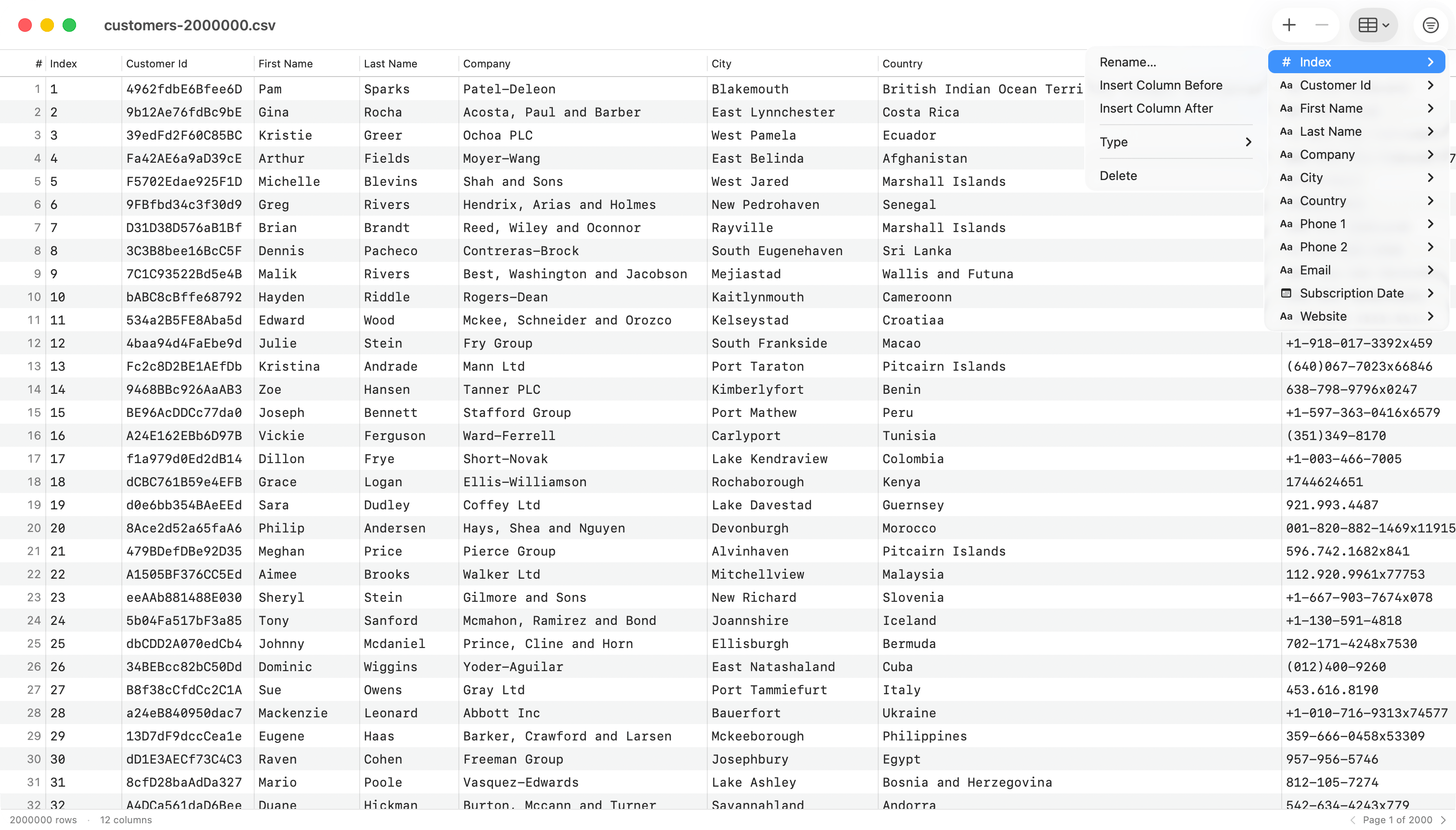
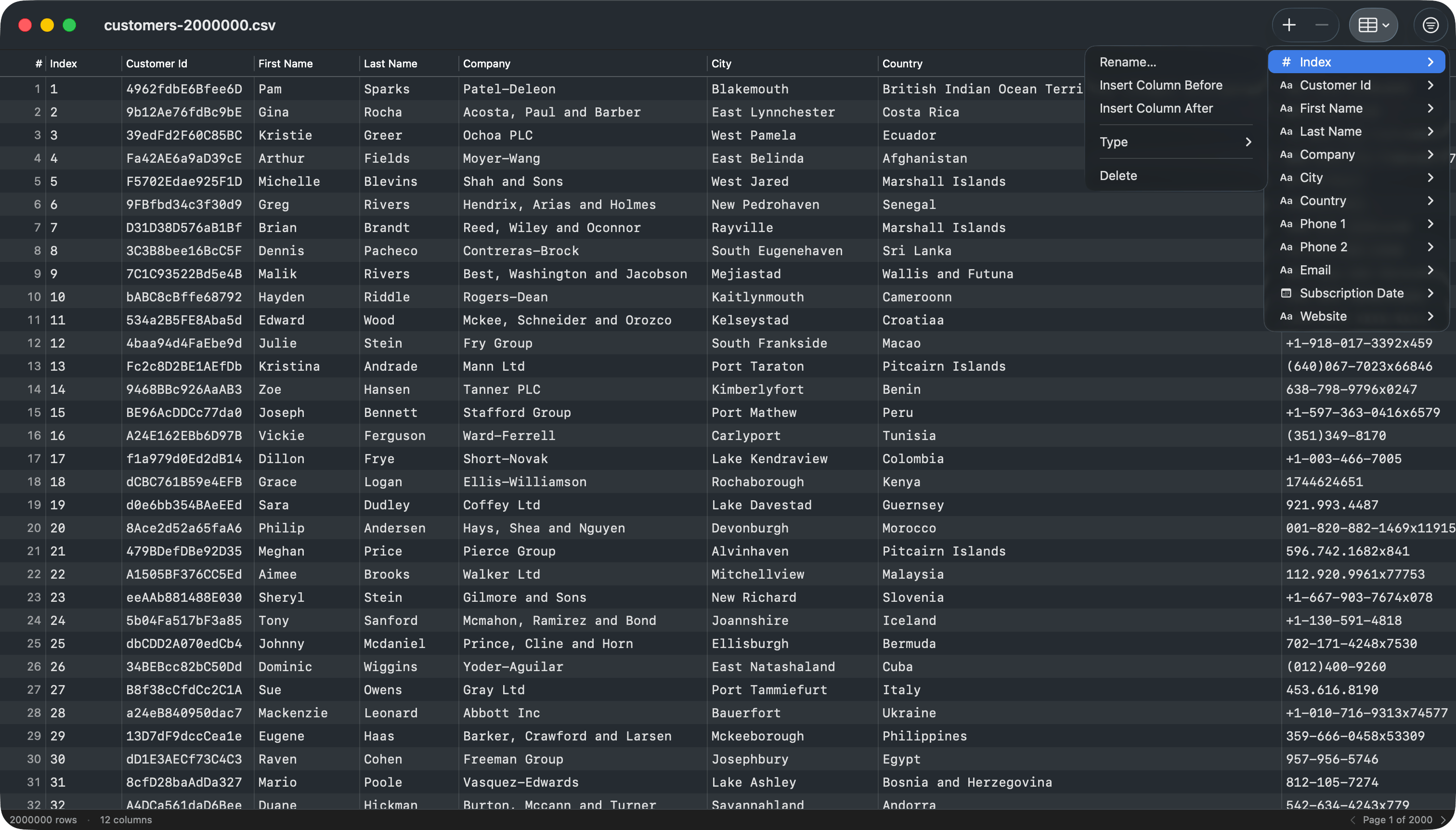 Right-click a column header, or open the toolbar `Columns` menu, to reach the same per-column actions:
* **Rename Column…** prompts for a new name; the column stays in place.
* **Insert Column Left / Right** inserts a new column next to the one you clicked, with a name you supply.
* **Split Column…** splits each value into new columns at every match of a delimiter or a regular expression. The original column is replaced by the pieces; rows with fewer pieces get empty cells.
* **Merge Columns…** joins the column with the one to its right into a single column, placing a separator you choose between the two values.
* **Change Type ▸** overrides the inferred type as Text, Integer, Real, Boolean, or Date. **Reset to Inferred** drops the override.
* **Delete Column** removes the column. It sits last in the menu and is undoable with Cmd+Z. Deleting a column that holds data asks you to confirm first.
Cmd-click several column headers to select whole columns, and the menu reads **Delete Columns**, removing all of them in one undoable step. Insert Column Left / Right, Split Column…, Merge Columns…, and Delete Column also appear in the Edit menu, where they act on the selected columns.
In the toolbar `Columns` menu, **Add Column…** at the top appends a new column at the end, and every column is listed below it with its current type and the same submenu.
## Header row
TablePro guesses whether the first row is a header when it opens the file. When it guesses wrong, choose **Edit > Switch First Row Between Header/Data** (`Cmd+Shift+H`) to flip it. Turning the header off moves the first row down into the data and names the columns `Column 1`, `Column 2`, and so on. Turning it back on promotes the first data row to the header. The change is undoable, and Save writes the file with or without a header row to match.
## Filter and sort
Right-click a column header, or open the toolbar `Columns` menu, to reach the same per-column actions:
* **Rename Column…** prompts for a new name; the column stays in place.
* **Insert Column Left / Right** inserts a new column next to the one you clicked, with a name you supply.
* **Split Column…** splits each value into new columns at every match of a delimiter or a regular expression. The original column is replaced by the pieces; rows with fewer pieces get empty cells.
* **Merge Columns…** joins the column with the one to its right into a single column, placing a separator you choose between the two values.
* **Change Type ▸** overrides the inferred type as Text, Integer, Real, Boolean, or Date. **Reset to Inferred** drops the override.
* **Delete Column** removes the column. It sits last in the menu and is undoable with Cmd+Z. Deleting a column that holds data asks you to confirm first.
Cmd-click several column headers to select whole columns, and the menu reads **Delete Columns**, removing all of them in one undoable step. Insert Column Left / Right, Split Column…, Merge Columns…, and Delete Column also appear in the Edit menu, where they act on the selected columns.
In the toolbar `Columns` menu, **Add Column…** at the top appends a new column at the end, and every column is listed below it with its current type and the same submenu.
## Header row
TablePro guesses whether the first row is a header when it opens the file. When it guesses wrong, choose **Edit > Switch First Row Between Header/Data** (`Cmd+Shift+H`) to flip it. Turning the header off moves the first row down into the data and names the columns `Column 1`, `Column 2`, and so on. Turning it back on promotes the first data row to the header. The change is undoable, and Save writes the file with or without a header row to match.
## Filter and sort
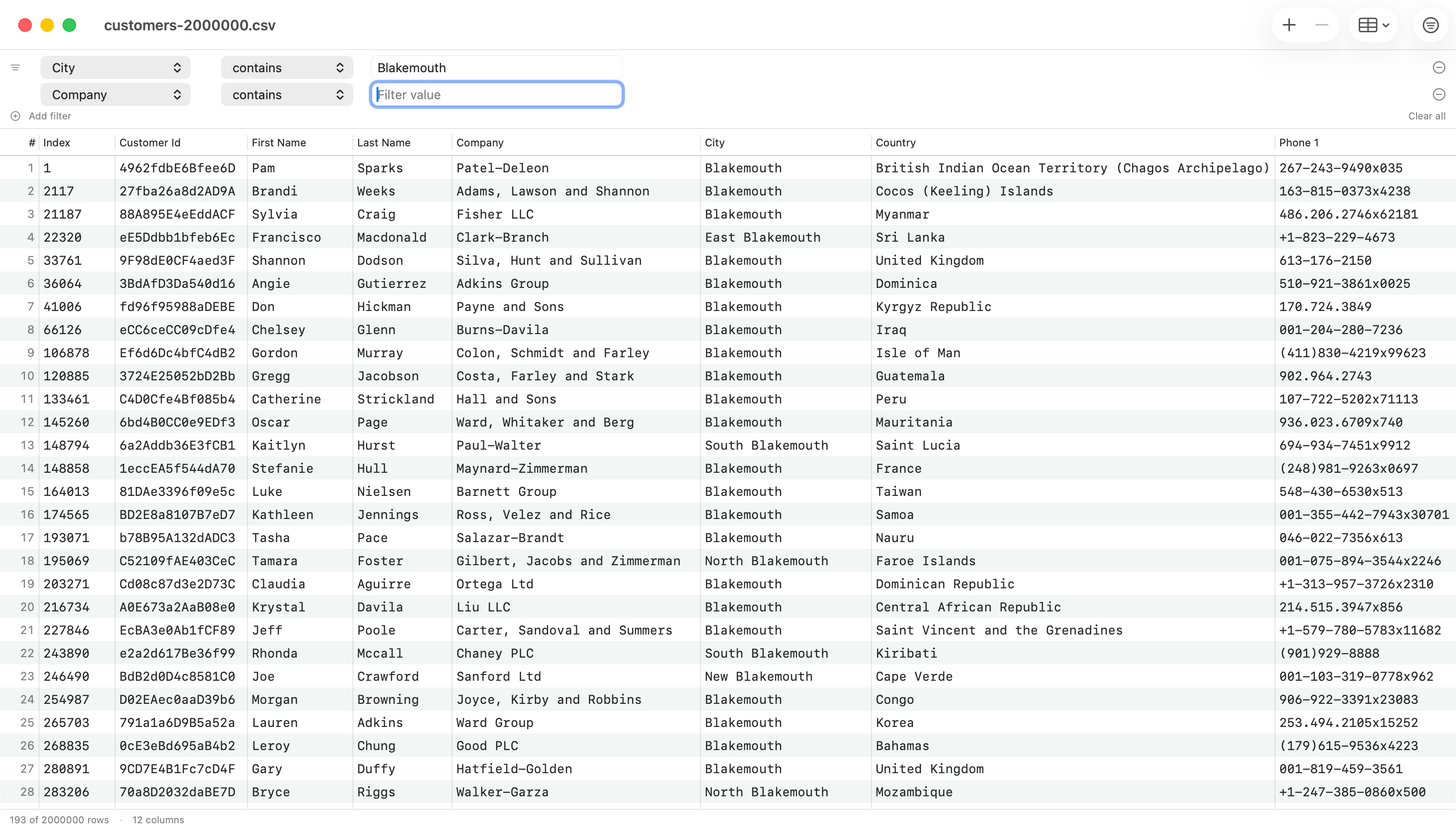
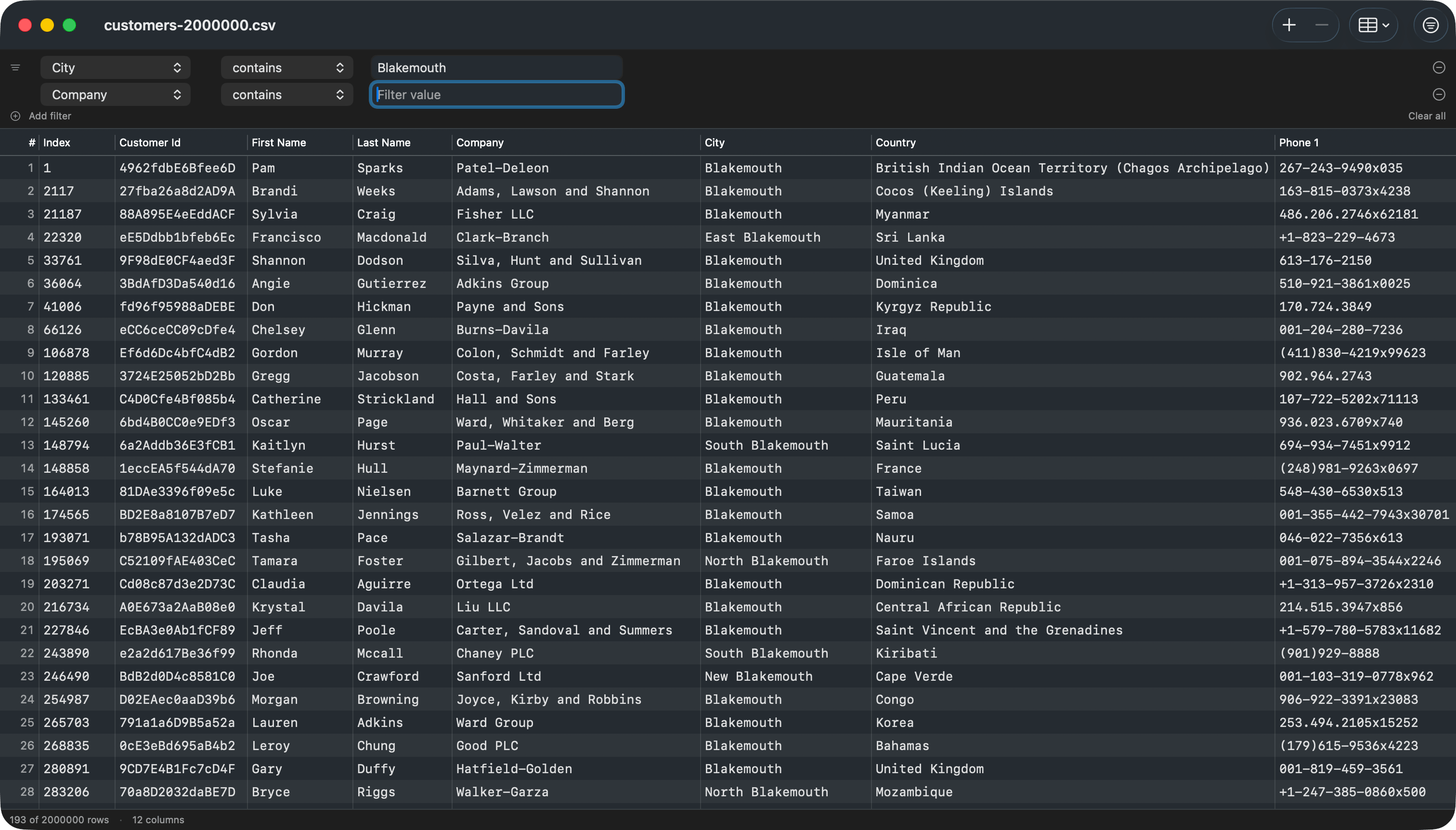 * `Cmd+F` toggles the filter bar. Each row is one condition: column, operator (`contains`, `equals`, `does not equal`, `starts with`, `ends with`, `is empty`, `is not empty`), and value.
* Use `+ Add filter` for additional conditions. All conditions are combined with AND.
* `Clear all` resets to a single empty condition.
* Click a column header to sort by that column. Shift-click another column to add it as a secondary sort key (and so on for tie-breakers).
* Numeric-typed columns sort numerically; text columns sort with natural ordering (so `Item 2` comes before `Item 10`).
* Filter and sort run off the main thread, so the UI stays responsive on large files. An "Updating…" indicator shows in the status bar while a recompute is in flight.
## Copy and paste
* `Cmd+C` copies the focused cell's value, or whole selected rows as TSV (tab-separated values).
* `Cmd+V` parses TSV from the pasteboard and appends each line as a new row. A block narrower than the table pastes into cells at the focused cell instead. A whole paste is one undo step.
## Type inference
TablePro samples the first 200 rows of the file and infers `Integer`, `Real`, `Boolean`, `Date`, or `Text` per column, skipping empty values. The inferred type controls numeric sorting. Inferred types do not modify the stored data: every cell is still a string on disk. Override per-column from the `Columns` menu.
## Saving
* Cmd+S saves to the original path, preserving the detected delimiter, encoding, line ending, and BOM. Unedited rows are written back byte-for-byte.
* Cmd+Shift+S brings up Save As, where you can re-pick the destination.
* The window close button shows the standard unsaved-changes dot until you save.
## External changes
If another application writes the file while you have it open in TablePro:
* If you have no unsaved edits, TablePro reloads the file.
* If you have unsaved edits, TablePro asks whether to reload or keep your changes.
## Window tabbing
CSV windows form their own native window tab group, separate from connection windows. Drag a tab out to detach it into its own window, or drop one back in to re-attach.
* `Cmd+F` toggles the filter bar. Each row is one condition: column, operator (`contains`, `equals`, `does not equal`, `starts with`, `ends with`, `is empty`, `is not empty`), and value.
* Use `+ Add filter` for additional conditions. All conditions are combined with AND.
* `Clear all` resets to a single empty condition.
* Click a column header to sort by that column. Shift-click another column to add it as a secondary sort key (and so on for tie-breakers).
* Numeric-typed columns sort numerically; text columns sort with natural ordering (so `Item 2` comes before `Item 10`).
* Filter and sort run off the main thread, so the UI stays responsive on large files. An "Updating…" indicator shows in the status bar while a recompute is in flight.
## Copy and paste
* `Cmd+C` copies the focused cell's value, or whole selected rows as TSV (tab-separated values).
* `Cmd+V` parses TSV from the pasteboard and appends each line as a new row. A block narrower than the table pastes into cells at the focused cell instead. A whole paste is one undo step.
## Type inference
TablePro samples the first 200 rows of the file and infers `Integer`, `Real`, `Boolean`, `Date`, or `Text` per column, skipping empty values. The inferred type controls numeric sorting. Inferred types do not modify the stored data: every cell is still a string on disk. Override per-column from the `Columns` menu.
## Saving
* Cmd+S saves to the original path, preserving the detected delimiter, encoding, line ending, and BOM. Unedited rows are written back byte-for-byte.
* Cmd+Shift+S brings up Save As, where you can re-pick the destination.
* The window close button shows the standard unsaved-changes dot until you save.
## External changes
If another application writes the file while you have it open in TablePro:
* If you have no unsaved edits, TablePro reloads the file.
* If you have unsaved edits, TablePro asks whether to reload or keep your changes.
## Window tabbing
CSV windows form their own native window tab group, separate from connection windows. Drag a tab out to detach it into its own window, or drop one back in to re-attach.